
Your Scout Drop dashboards
Sign in with Discord to see your reviews, your org and your team's work, live. Here's what each page does and how to get in.
Signing in
There's no account to make and no password to remember: you sign in with the Discord account you already use in the Scout Drop server.
- Be in the Scout Drop Discord. Signing in is for members of the server.
- Go to scoutdropcoaching.com/me for your own page, or scoutdropcoaching.com/team if you're a coach or in management.
- Press Sign in with Discord, then allow it on Discord's screen. You land straight on your page.
What we see: your Discord username and profile picture, and nothing else. Never your email or your password. One cookie keeps you signed in for 30 days, and signing out ends it.
Coaches, management and owners: your Discord account needs two-factor sign-in switched on (Discord: User Settings → My Account → Enable Authenticator App). Until it's on, you'll see your player page. Switch it on, then sign out and in again.
Your page
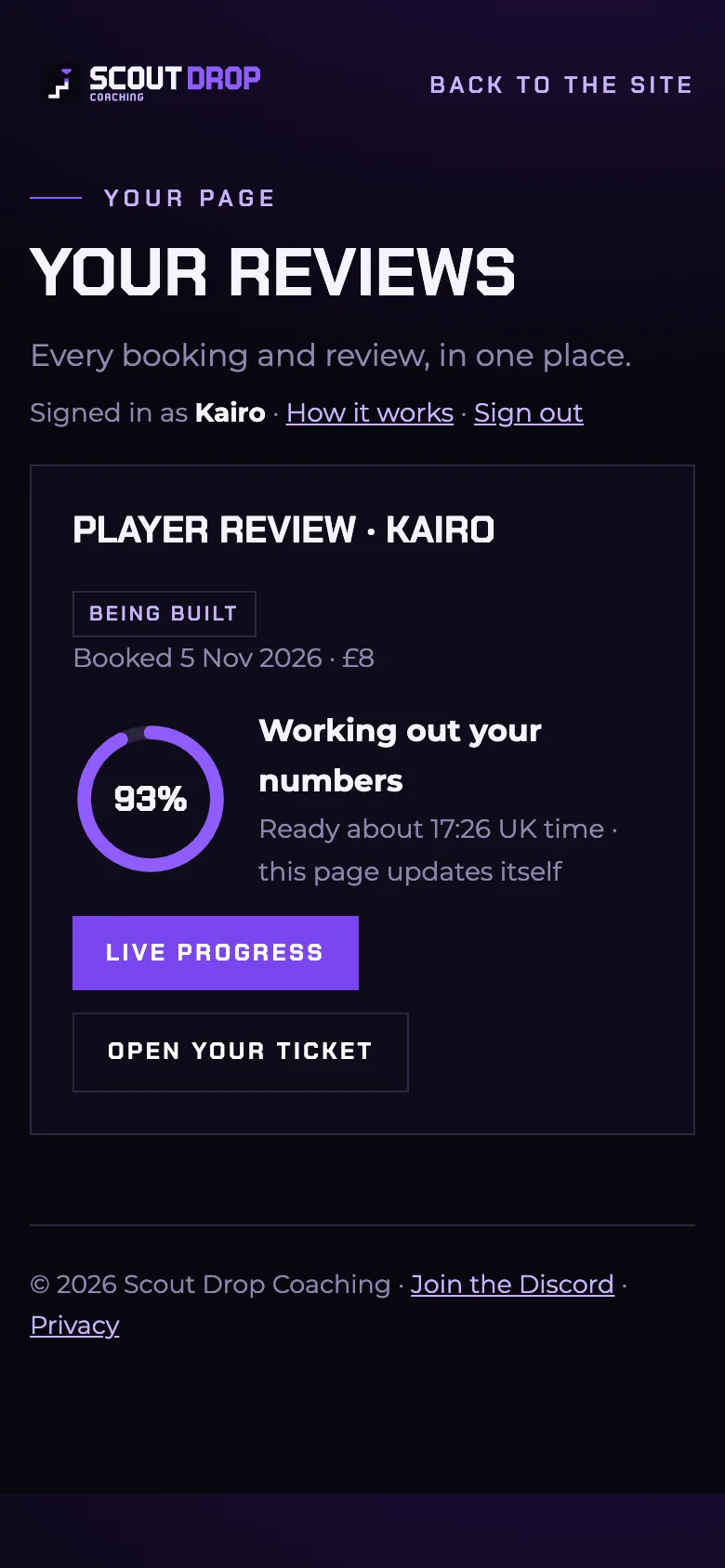
scoutdropcoaching.com/me- Every booking and review in one place, newest first.
- Live progress. While your review is being built, the wheel shows how far along it is and roughly when it'll be ready. The page updates itself.
- Your review video and any booked call, right there with the booking.
- One tap to your ticket in Discord, where your review is delivered.
Nothing booked yet? Book a review and it shows up on your page.
Your org view
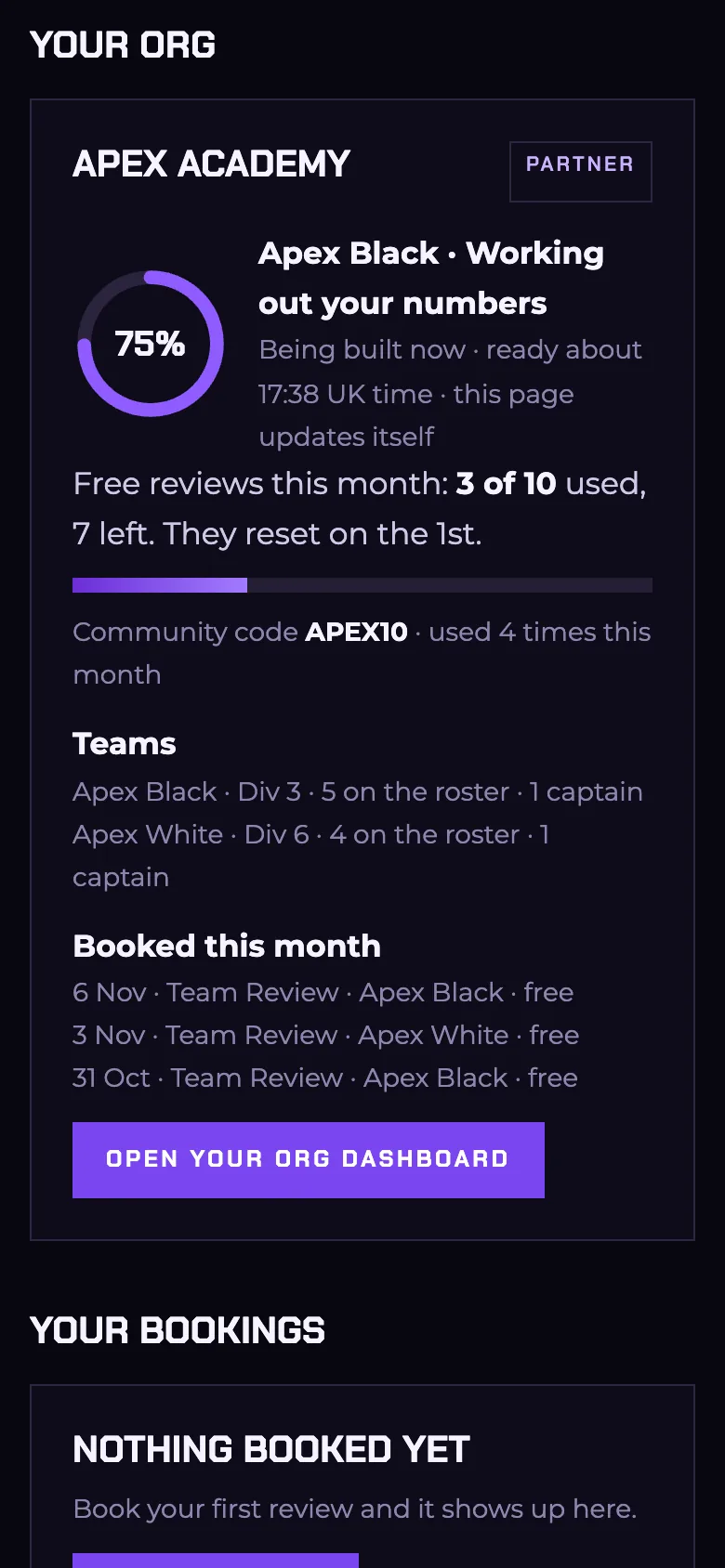
scoutdropcoaching.com/meOrg owners, contacts and team captains get their org on the same page, above their own bookings.
- Free reviews this month: how many are used and how many are left. They reset on the 1st.
- Your community code and how many times it's been used this month.
- Every team with its division, roster size and captains.
- Live progress on any of your teams' reviews while they're being built.
- This month's bookings, and one tap to your org's private dashboard in Discord.
Captains add their own players in the captains desk channel in Discord.
The team dashboard
scoutdropcoaching.com/team- Home: reviews waiting to be checked, open tickets, your next calls and the live wheel.
- Tickets: every client ticket and its stage: booked, in the queue, being built, ready to check or delivered.
- Reviews: open a finished review, check every panel full size, then press Deliver to send it to the client's ticket.
- Calls: every booked call with its time and length.
- Clients: each client's teams, bookings and reviews, with notes the whole team can see.
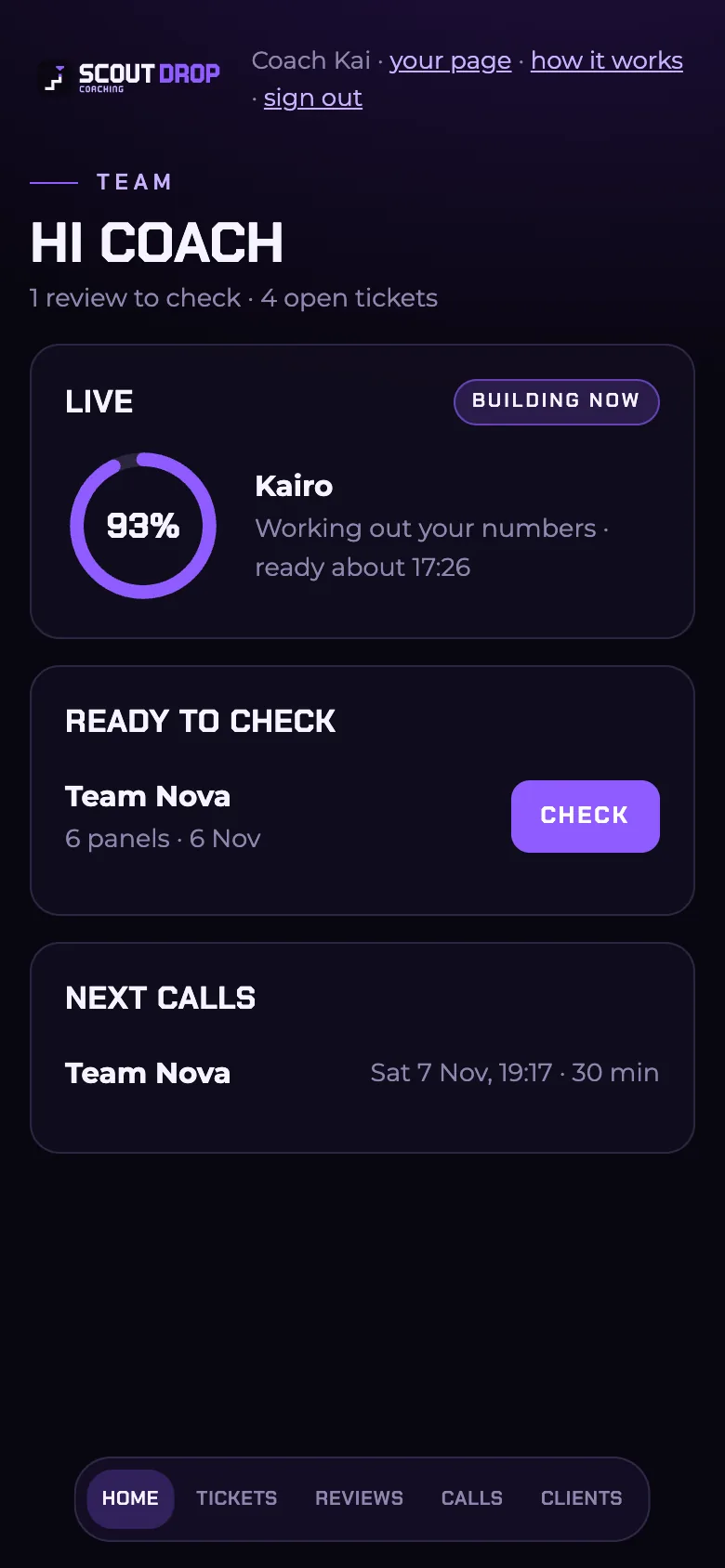
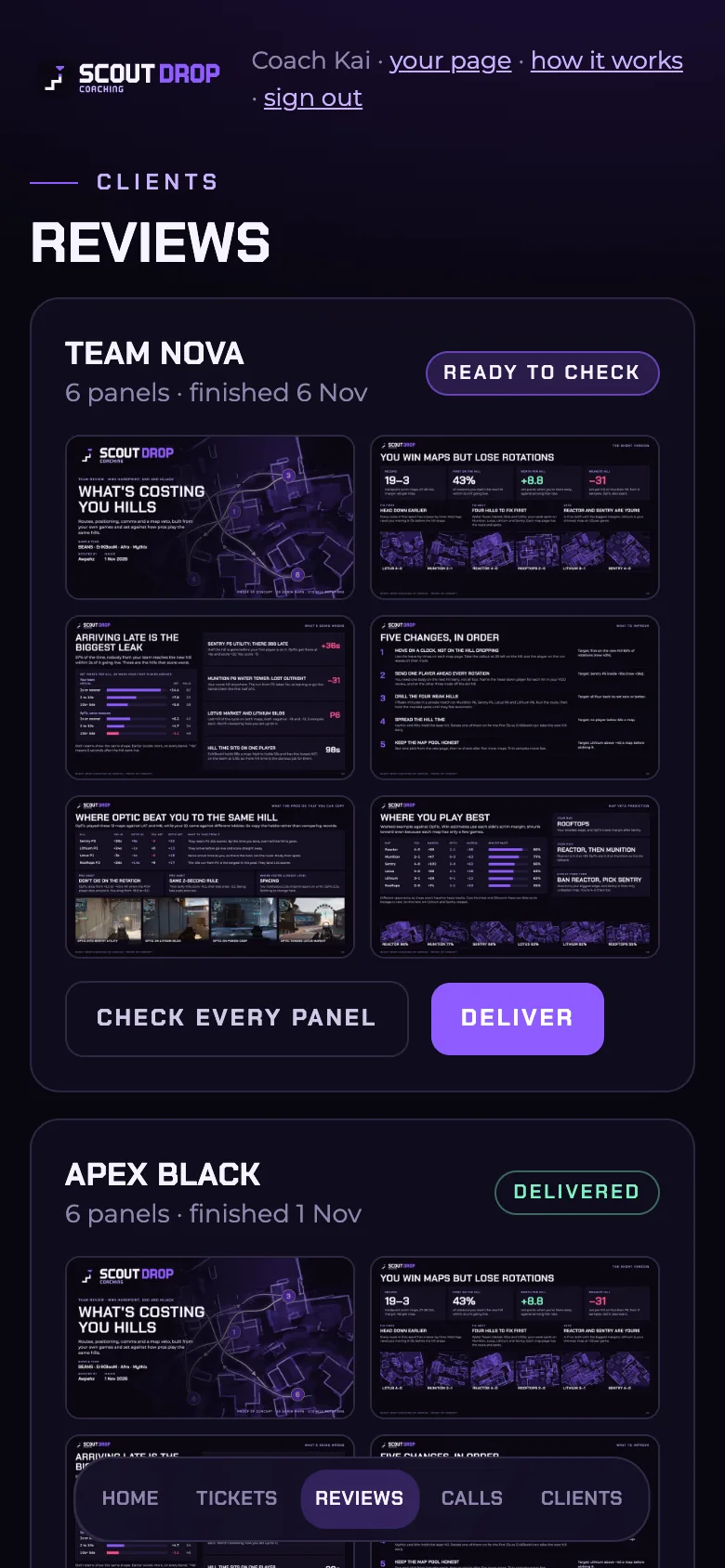
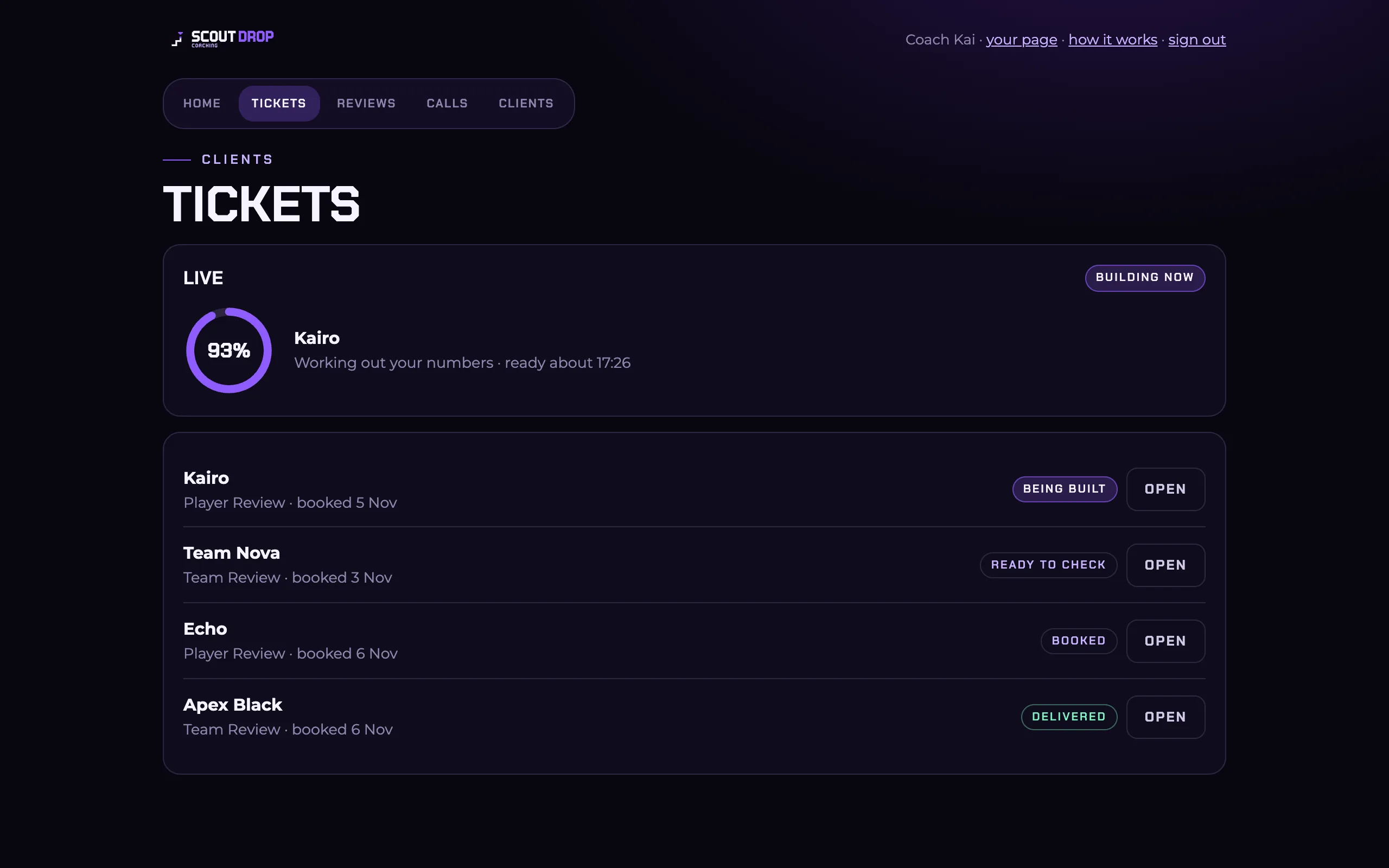
Every screen works on a phone first, and on a computer too.
Everything coaches get, plus
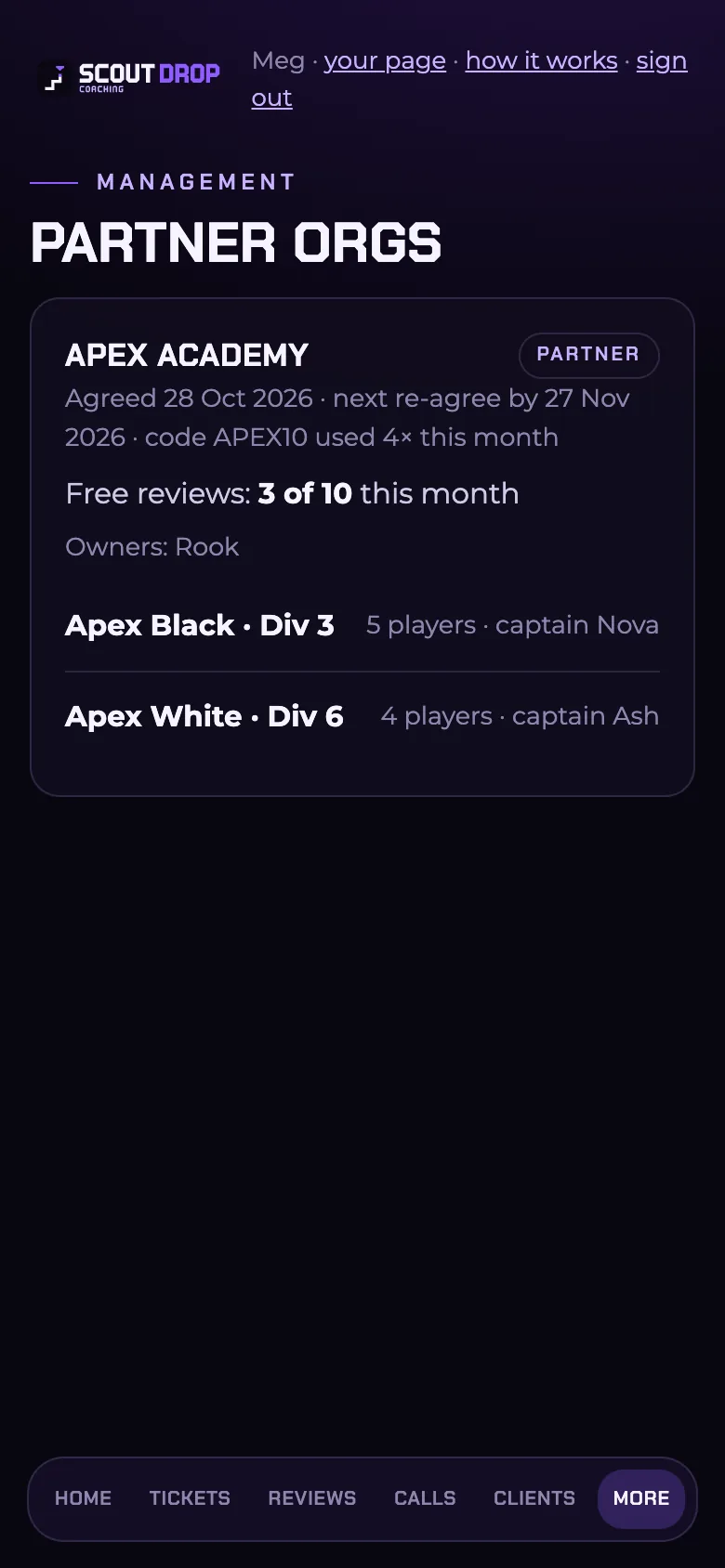
scoutdropcoaching.com/team- Orgs: each partner's terms, community code use, free reviews this month, owners, teams and captains.
- Members: everyone in the server, when they joined and their roles, with search and the moderation log.
- Announce: write an announcement, choose when it goes out and whether to ping @everyone. Cancel it any time before it posts.
On a phone, Orgs, Members and Announce sit under More.
Questions
It says to join the Discord first
Sign in with the Discord account that's in the Scout Drop server. If you're not in it yet, join at discord.gg/scoutdrop, then sign in again.
I'm a coach, but I only see my player page
Switch on two-factor sign-in for your Discord account (User Settings → My Account), then sign out and in again. If you were only just given your role, it can take up to five minutes to show.
I can't see my org
The org view is for an org's owners, contacts and team captains. Ask your org's owner to make you a captain, or open a ticket in the Discord.
Is it safe?
Signing in goes through Discord, so we never see your password, and we only ask for your username and profile picture. Your page shows your own bookings and reviews, and nobody else's.
How do I sign out?
Use Sign out at the top of your page. It signs you out on that device.
Something looks wrong
Open a ticket in the Discord and we'll sort it.
© 2026 Scout Drop Coaching · Join the Discord · Privacy · Terms